In this article, I’m going to briefly walk through how to create and deploy a .net mvc sample app in Oracle Application Container Cloud Service.
Assumptions:
- you have an Oracle Cloud account, it can be the promotion trial account
- you have dotnet core installed on your local machine – I’m using dotnet 2.0.0 on MacOS
- you have the corresponding editor / tools, e.g. I’m using VS Code.
- Launch VS Code and open the embedded Terminal. Alternatively, you can also use your favorite editor and/or the OS Terminal (in Windows, that will be the Command Window).
-
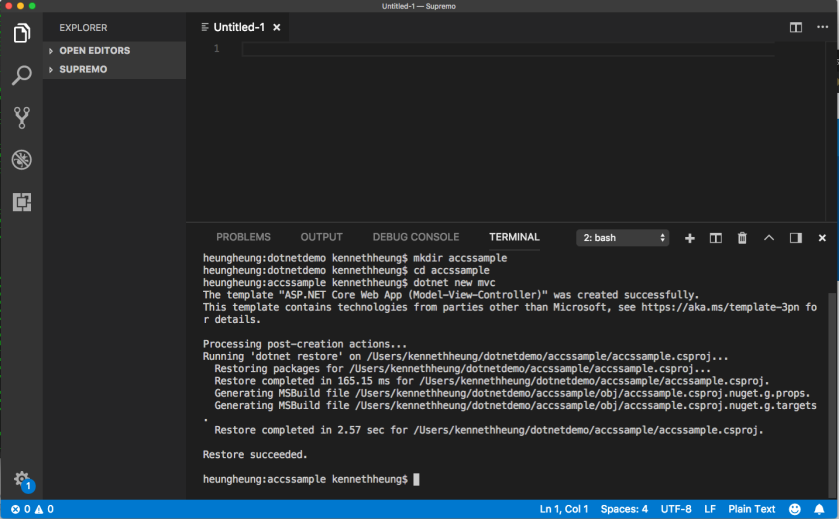
Create and goto (mkdir/cd) your desire folder and create the mvc project – I will call the project accssample:
mkdir accssample
cd accssample
dotnet new mvc
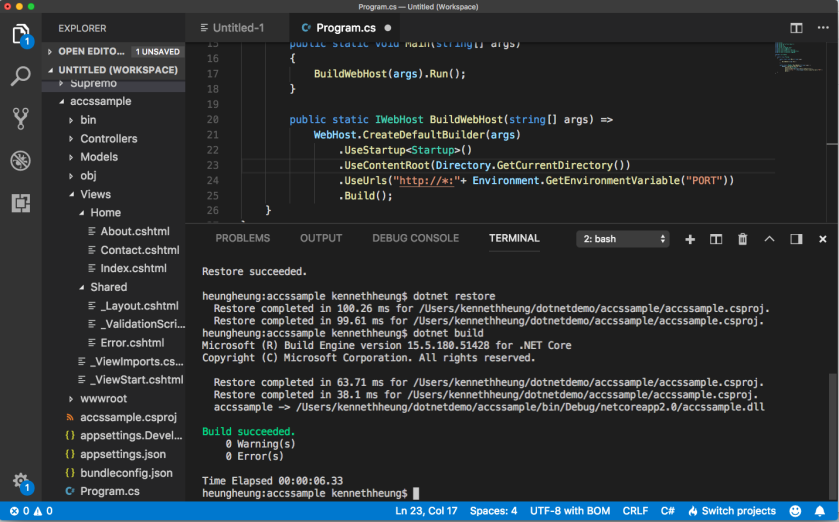
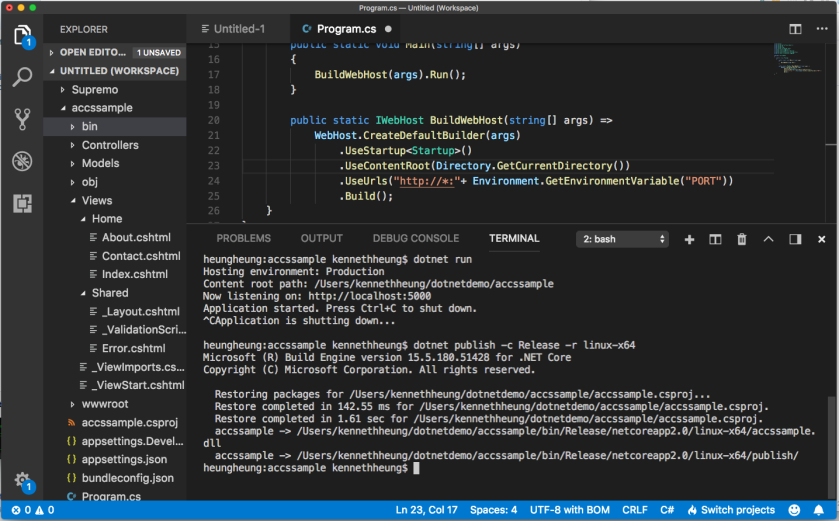
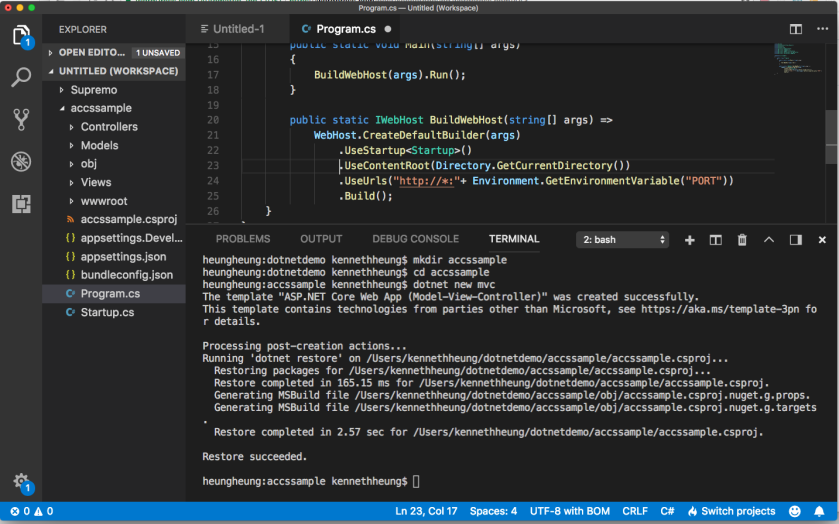
- Open Program.cs file of the project, add .UseContextRoot( ) and .UseUrls( ) in the CreateDefaultBuilder
.UseContentRoot(Directory.GetCurrentDirectory())

.UseUrls("http://*:"+ Environment.GetEnvironmentVariable("PORT"))
Your program will looks like this
Remember to save the changes.
- Use the terminal to update the project dependencies and create a debug build for local testing.
dotnet restore
dotnet build
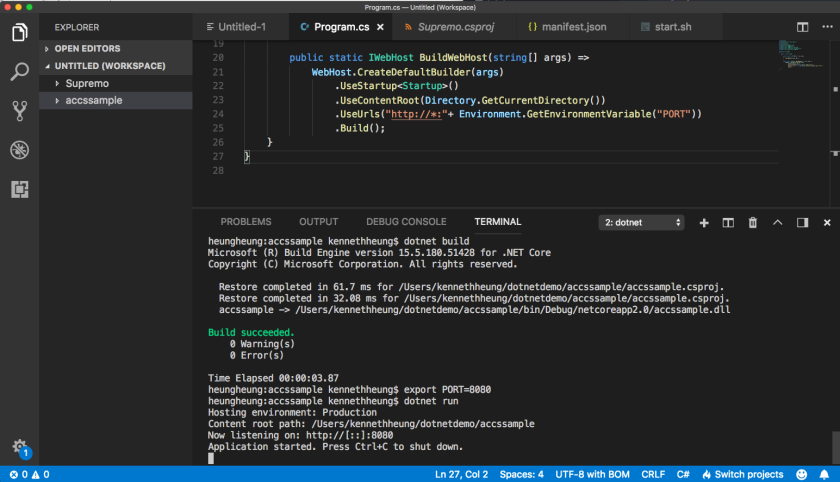
- Test the program locally
export PORT=8080
dotnet run
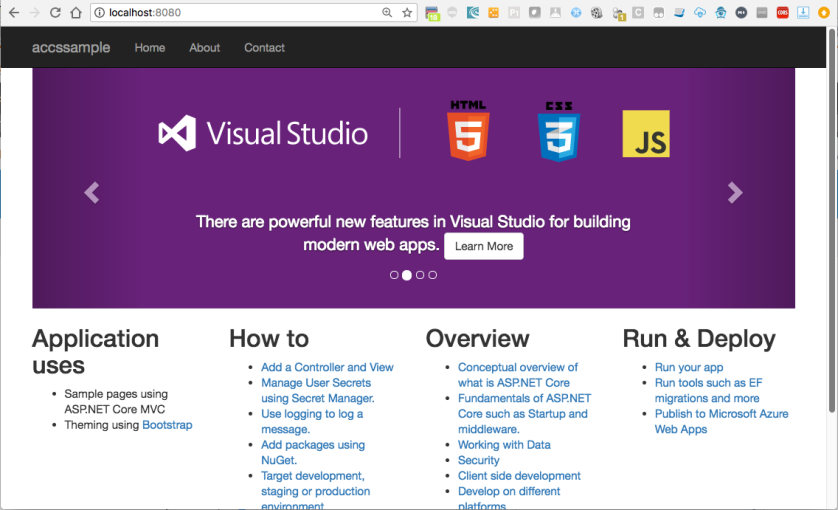
Open a browser and navigate to http://localhost:8080 to test the app locally
- Once we are happy with the app, we can create the release build. We will need to publish to Linux release for ACCS.
dotnet publish -c Release -r linux-x64
- For ACCS to start the program, we will create 2 more files in the distribution (i.e. linux-x64) folder
start.sh
manifest.json
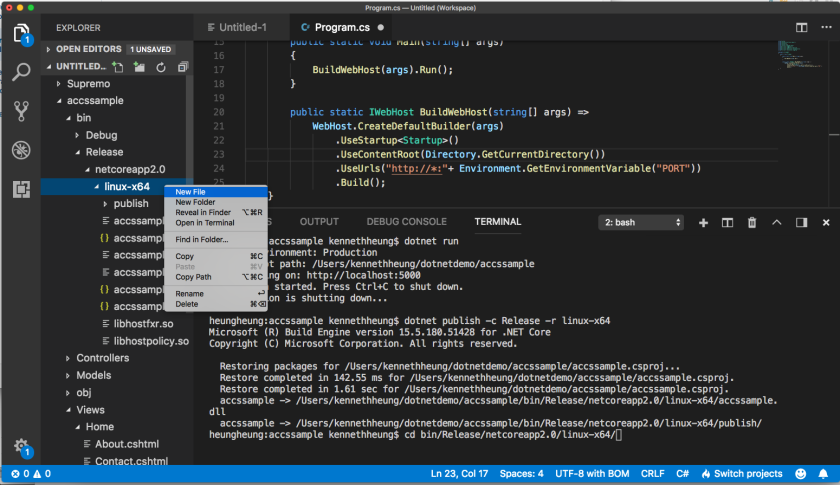
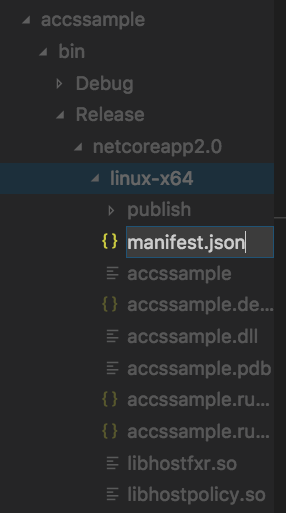
Right click the linux-x64 folder and choose new file, name the first file as manifest.json
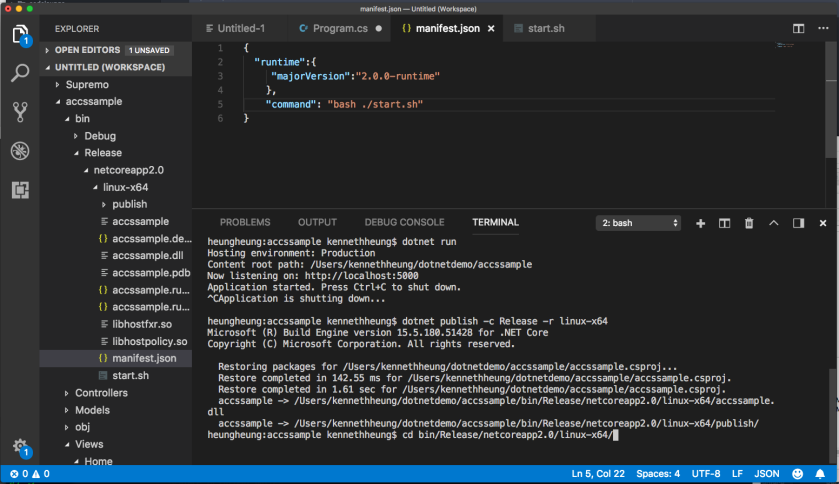
- Enter the contents of manifest and remember to save it. For more info about ACCS manifest, please refer to ACCS documentation https://docs.oracle.com/en/cloud/paas/app-container-cloud/dvcjv/creating-meta-data-files.html
- Repeat the same for the start.sh
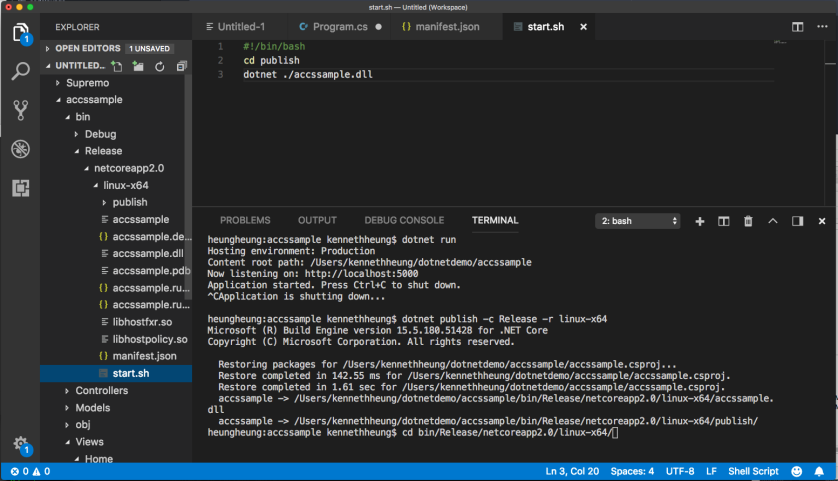
- In the terminal window, zip the release, start.sh and manifest.
cd bin/Release/netcoreapp2.0/linux-x64/
zip -rq accssample.zip manifest.json start.sh publish
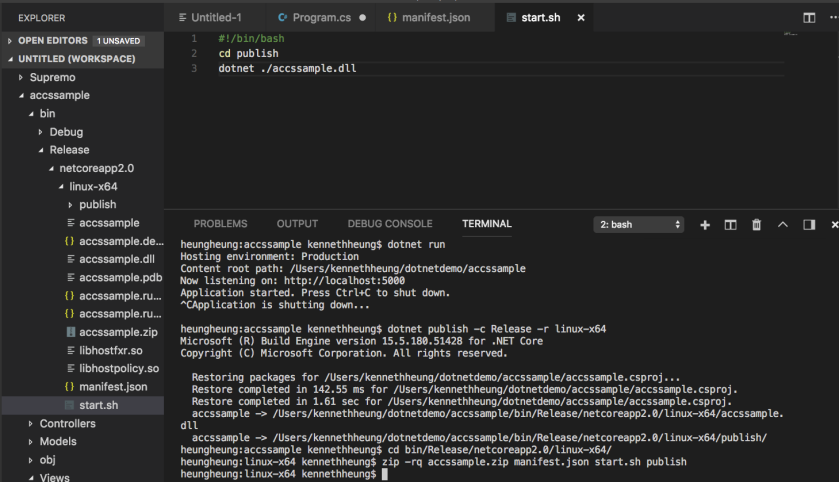
- The application is now ready to deploy to ACCS. We can either use Web GUI, CLI or REST API to deploy the app.
I’ve a small shell script to execute curl to send REST to deploy the app. I also have a deployment.json file to control the memory and number of instance of the app. The deployment json looks like this
{
        "memory":"1G",
        "instances":"1"
}
this is what I did to deploy the app to ACCS,
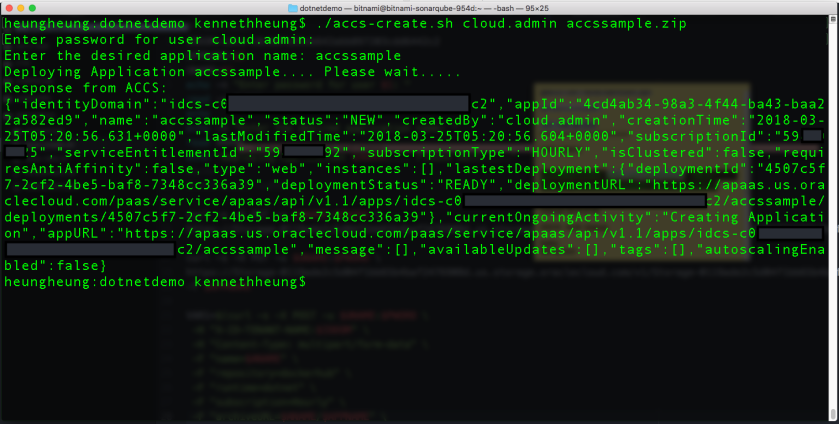
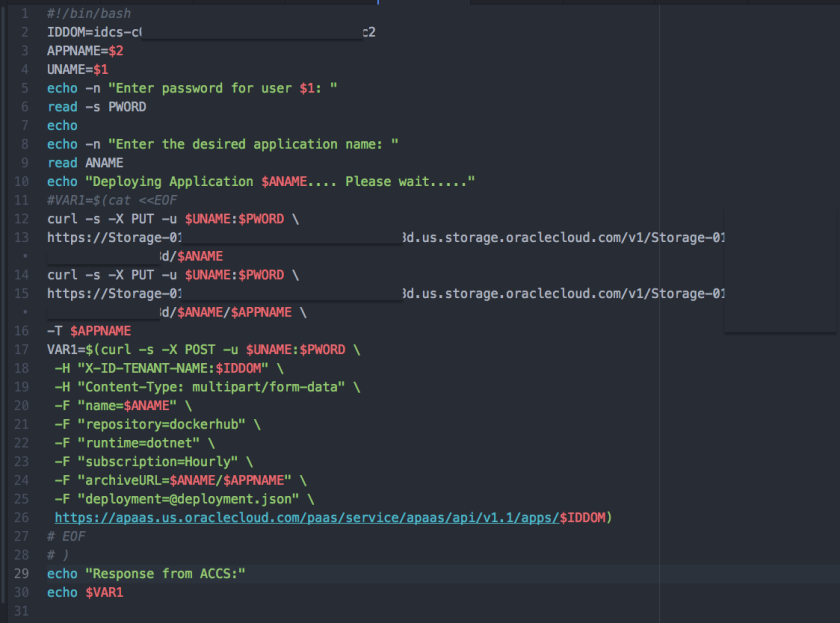
and this is what my script looks like – what I actually do is
- create a storage container
- put my the zip file in the container
- create an ACCS app from zip (in storage container)
- We can double check the application deployment from ACCS WebUI (or using CLI / REST API)
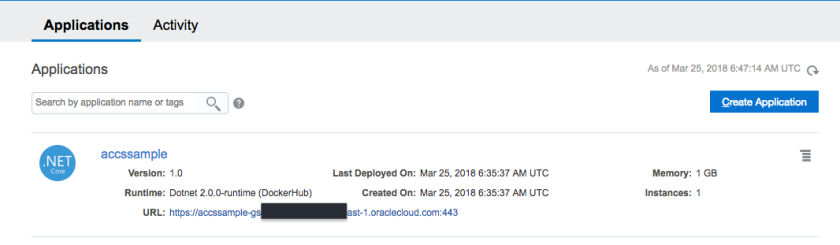
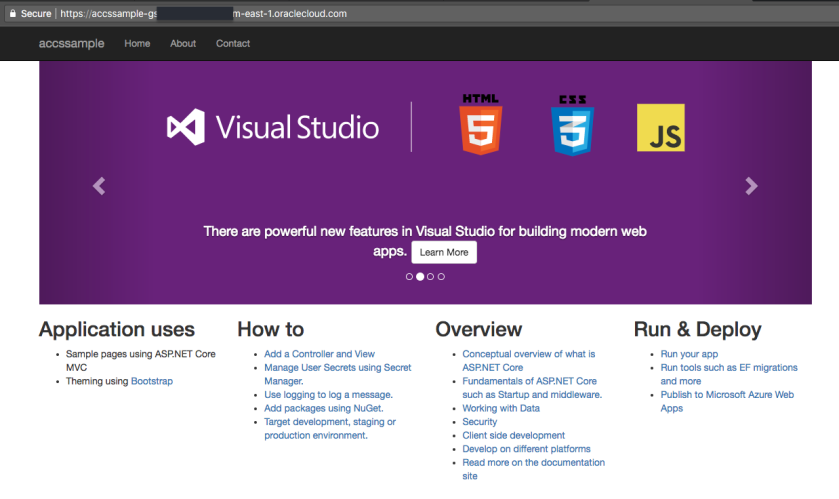
- Our sample app is now up and running in ACCS.






 heung.cloud